


More Power Tuning


Real Reviews from Real Customers
Let customers speak for us
Chad Welshans
The window mount works amazing the magnet is
The window mount works amazing the magnet is very strong. You don’t have to worry about it falling off the suction cup sticks to the window very well that will never fall off just an awesome product so are the people always willing to help!
SCT / Bully Dog BDX Window Mount - 30490
Rich
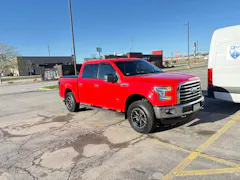
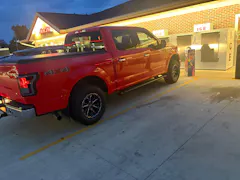
2012 Ecoboost F150 4x4 Lariat
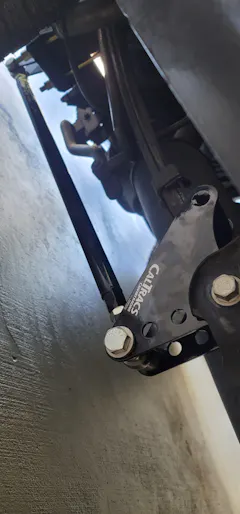
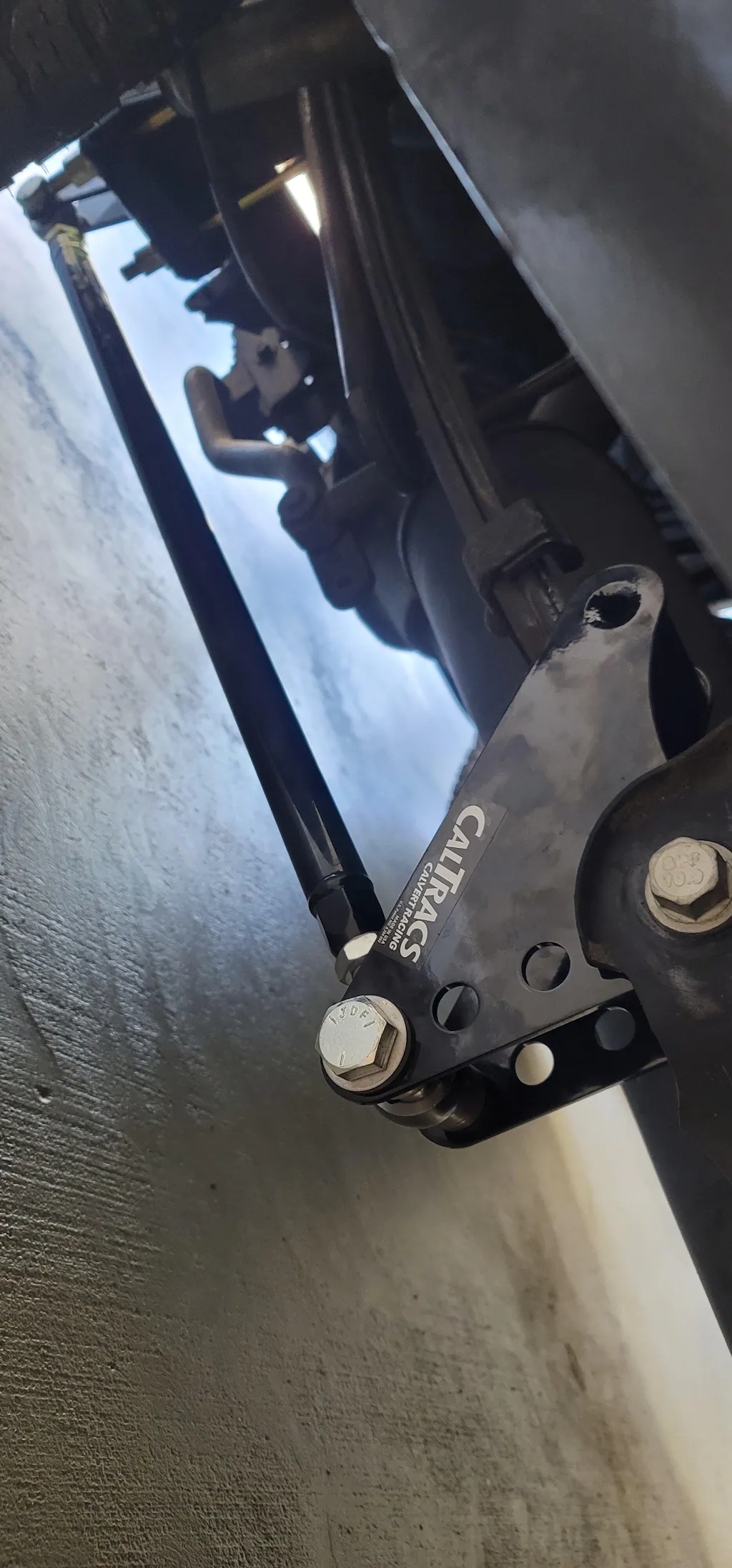
I read a lot of reviews on different forums and there wasnt really anything on my year truck (2012 F150) I read a lot of reviews talking about caltracs making noise over bumps and making the vehicle ride really harsh and louder because of the solid bushings vs the rubber coated OEM ones. So I was hesitant on purchasing these traction bars but purchased them anyway.
I had really bad axel wrap / hopping when burning out, it wasn't smooth. I purchase these and installed them and I couldn't be happier. The install wasnt bad. Used a ball joint press and a puller to remove the old bushings and used the ball joint press to install the new bushings in the leaf springs. I had to purchase longer ubolts because of the thicker lower plate (truck has 3" blocks on the rear) and the links supplied was short. I called caltracs directly and explained the issue with the links (original 29") and I needed 31.5" for the install. (Probably due to the 3" rear blocks) And they sent me the correct length within a few days.
This took care of the wheel hop and exel wrap completely. The truck drives normal, not harsh or stiff. It isn't louder because of the solid bushings and it doesn't make any noise over bumps or rough roads.
Excellent purchase and excellent customer support.
Caltracs Traction Bars for 2011-2014 F150 and Raptor
Jonny B
2018 Expedition Max EcoBoost
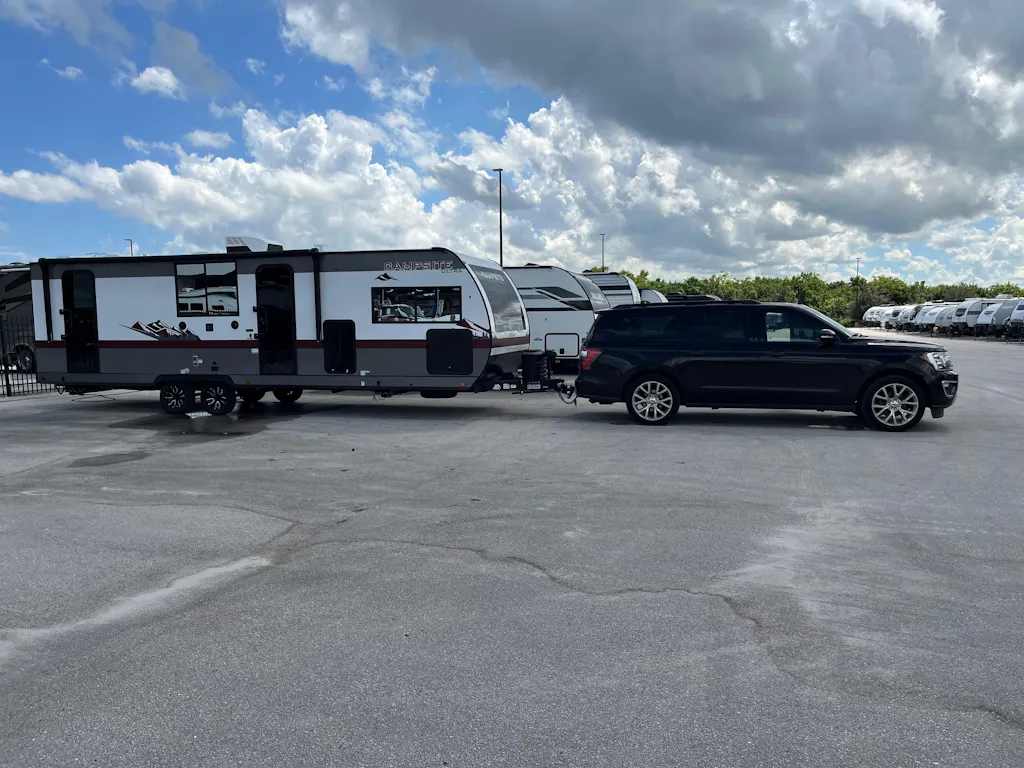
2018 Expedition Max EcoBoost. Everyone online said that an MPT tune is a must have on the EcoBoost. Everyone was right. I got the 91 Daily/Tow tune just 1 day before driving across the country from Florida to Denver towing my 30ft. camper trailer (not for fun… we moved). This tune turned the expedition into an absolute beast. The tow haul function, power, and gearing made it so easy and effortless pulling the camper. 2000 miles in 4 days. 12.4 miles per gallon. It’s a whole new and exciting driving experience. Thanks MPT.
SCT Tuner BDX 40490
Chad Welshans
AS the PRX 91 and the PRX 93 tune
AS the PRX 91 and the PRX 93 tune completely woke up at 2.7 eco-boost. It is a little monster absolutely love it.
SCT Tuner BDX 40490
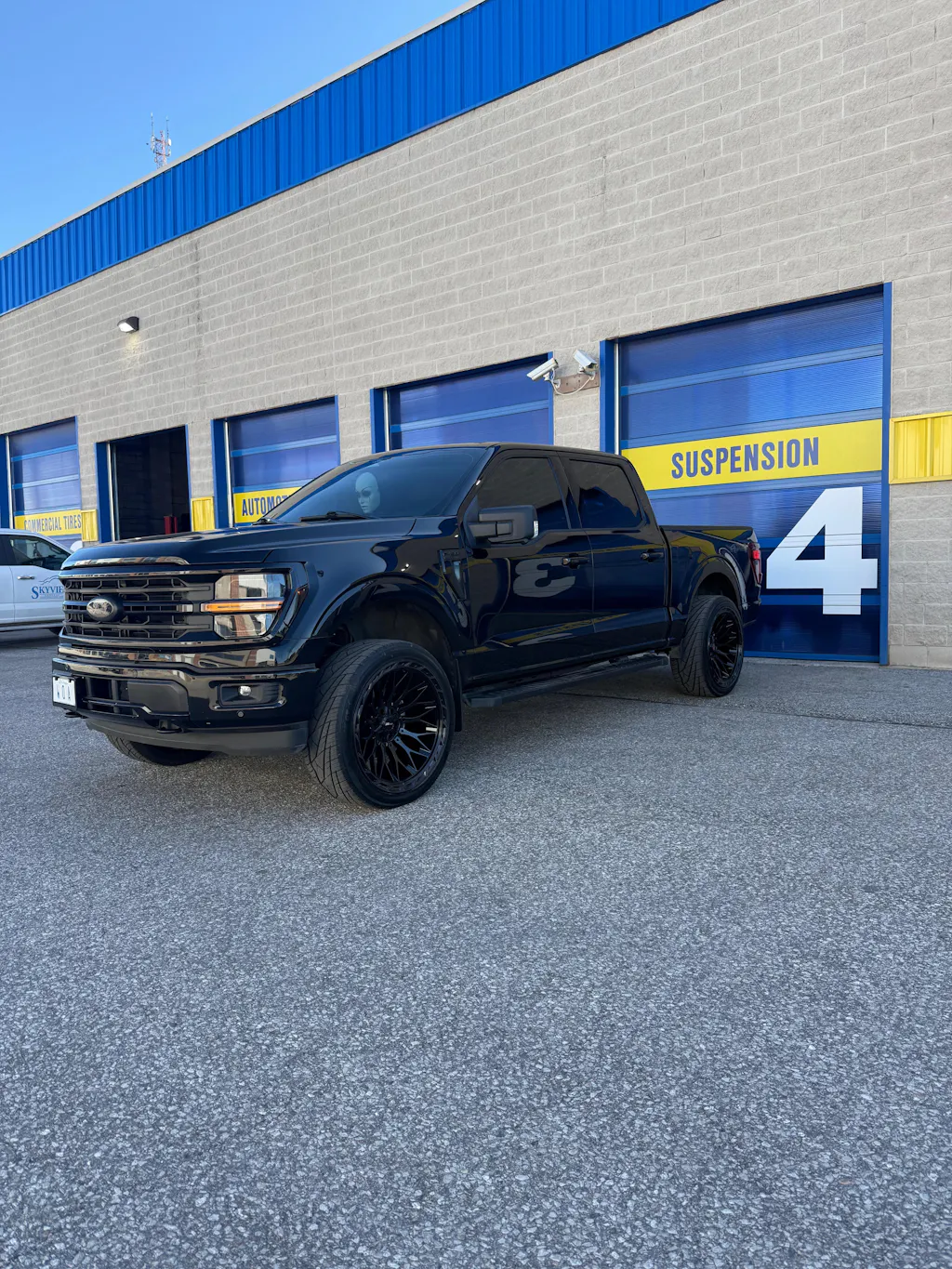
Dan
BIG shout out to MPT for unreal customer service!
BIG shout out to MPT for unreal customer service! These guys are the best by far. I got the performance and tow tune on my 2.7 and what a monster it turned into over night! Strongly recommend MPT!
More Power Tuning
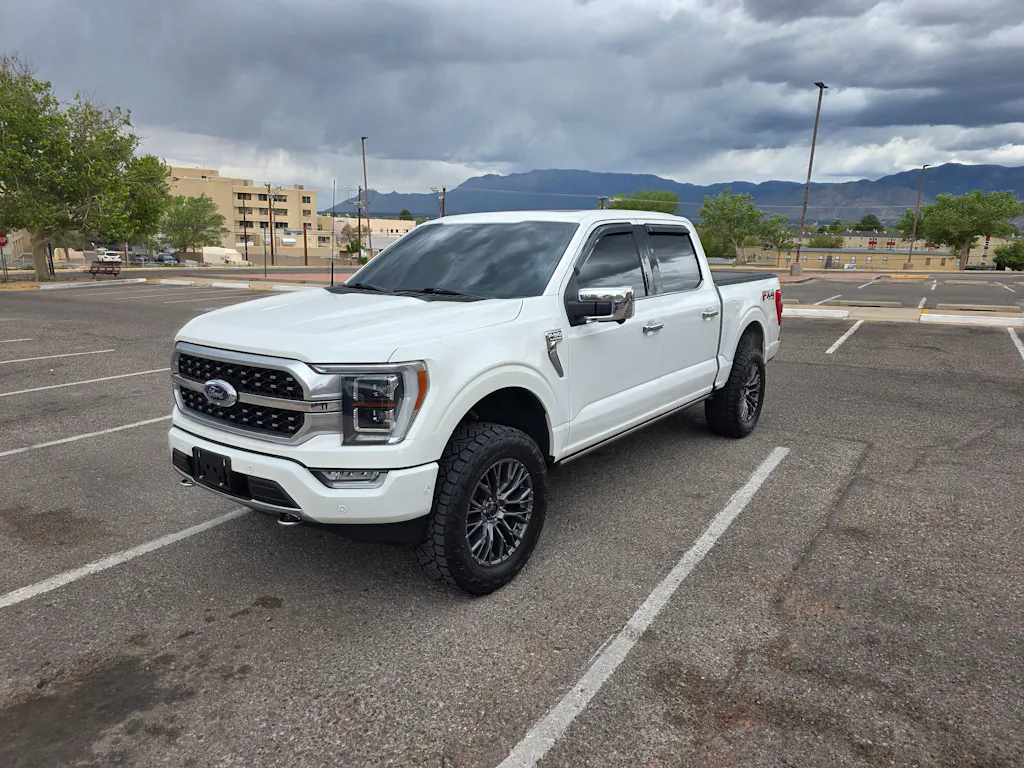
ERIC VALDEZ
Super easy to use!
Super easy to use and it worked very well!
SCT Tuner BDX 40490
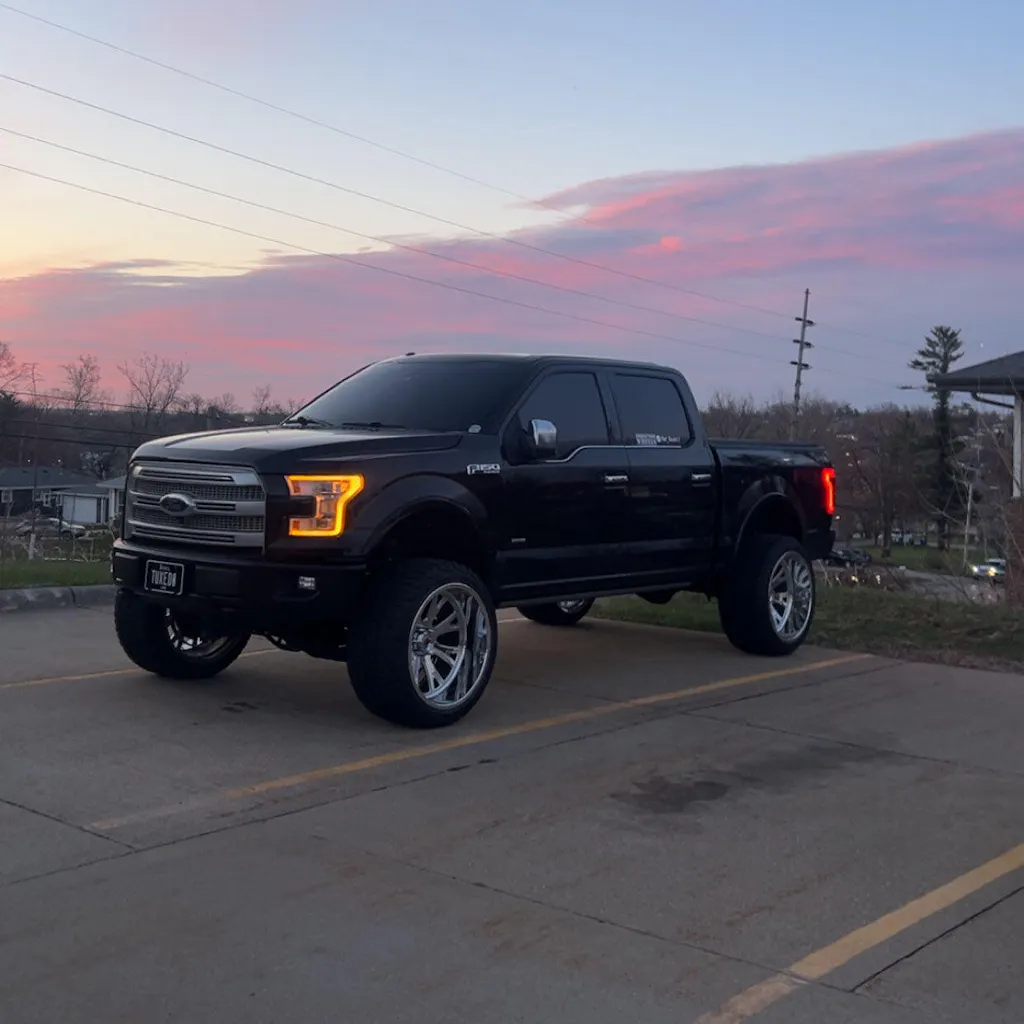
Skyler Stoner
Incredible from start to finish
MPTs tuning and customer service has been incredible throughout the whole process they are very quick turnaround time on tuning revisions and any questions I have had and are especially knowledgeable of these vehicles
2011-2016 F-150 3.5L Ecoboost Tuning Packages
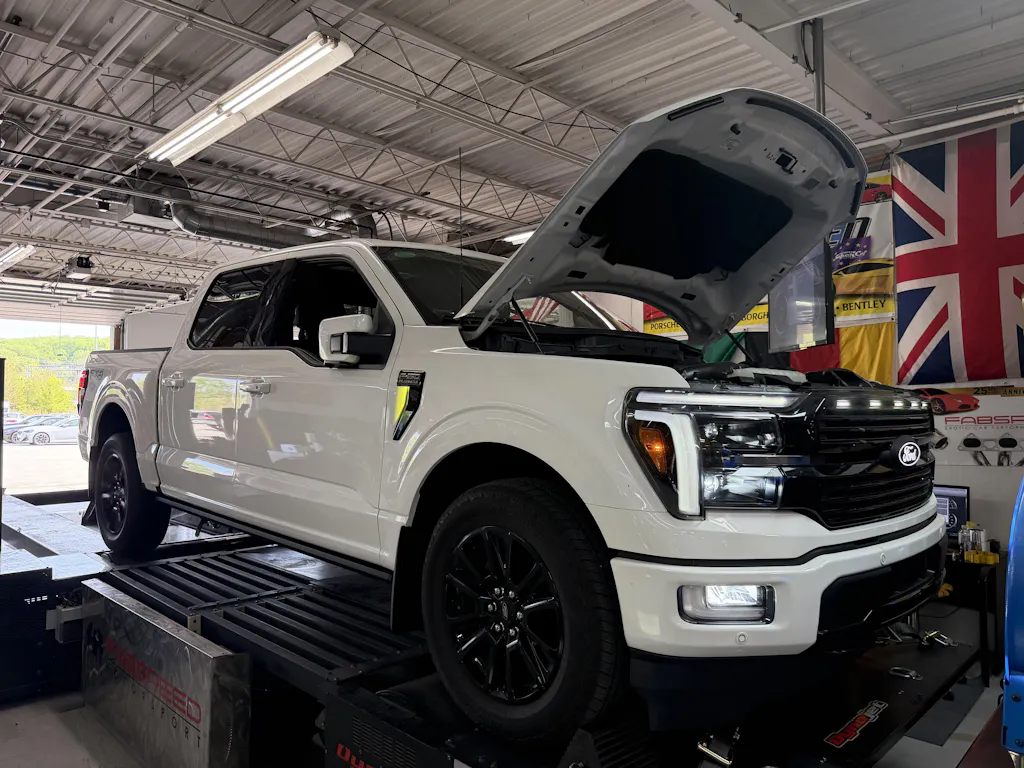
Joe Fabiani
Great Company and great products- EXPERT OPINION !
Great Company and great products . I own www.fabspeed.com and we specialize in Tuning Porsche Ferrari McLaren Lamborghini we manufacture exhaust and intake and supply ECU tunes— MPT More Power Tuning is the EXPERT in their area- I am very very happy and highly recommend MPT.
13-25 Ford F-150 / Raptor 2.7L/3.5L EcoBoost Turbosmart TS-0225-1001 BOV Vee Port EM-Black
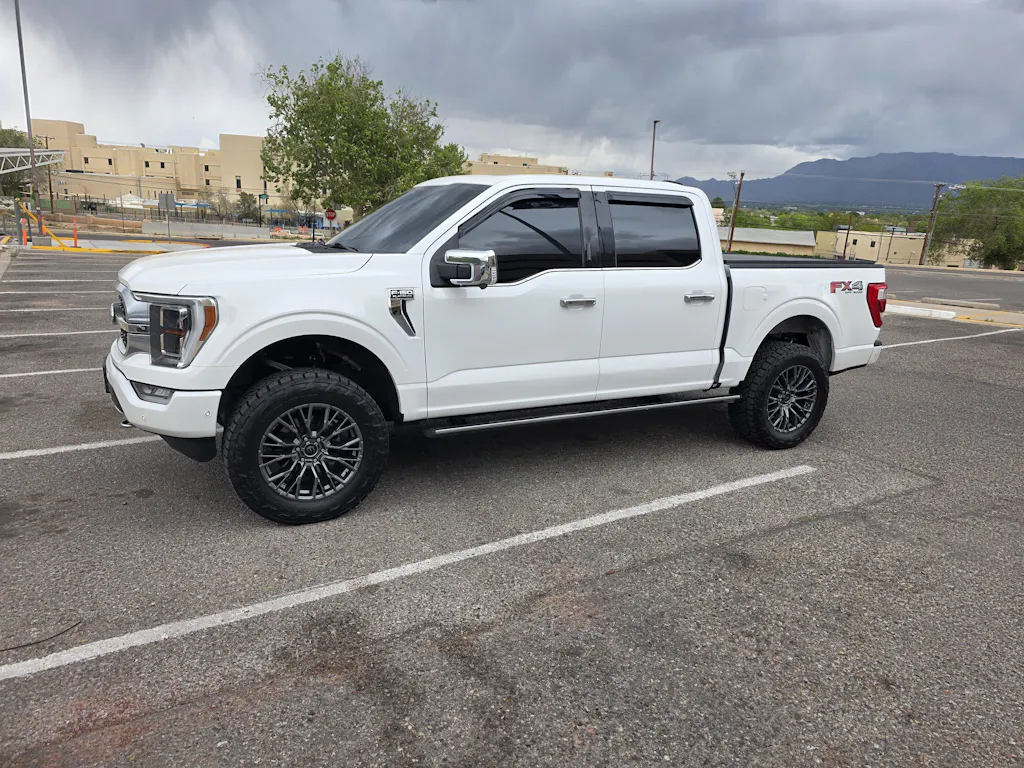
ERIC VALDEZ
MPT rocks!
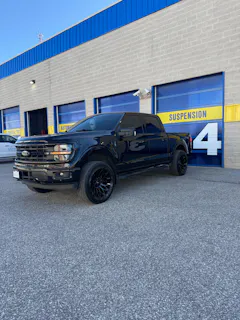
MPT rocks! Got the 93 octane tune for my 2021 Fi50 3.5 ecoboost and it's a monster! Thank you!
21-23 F-150 3.5L Ecoboost MPT Dyno Tested Tune (+Optional Tuner)
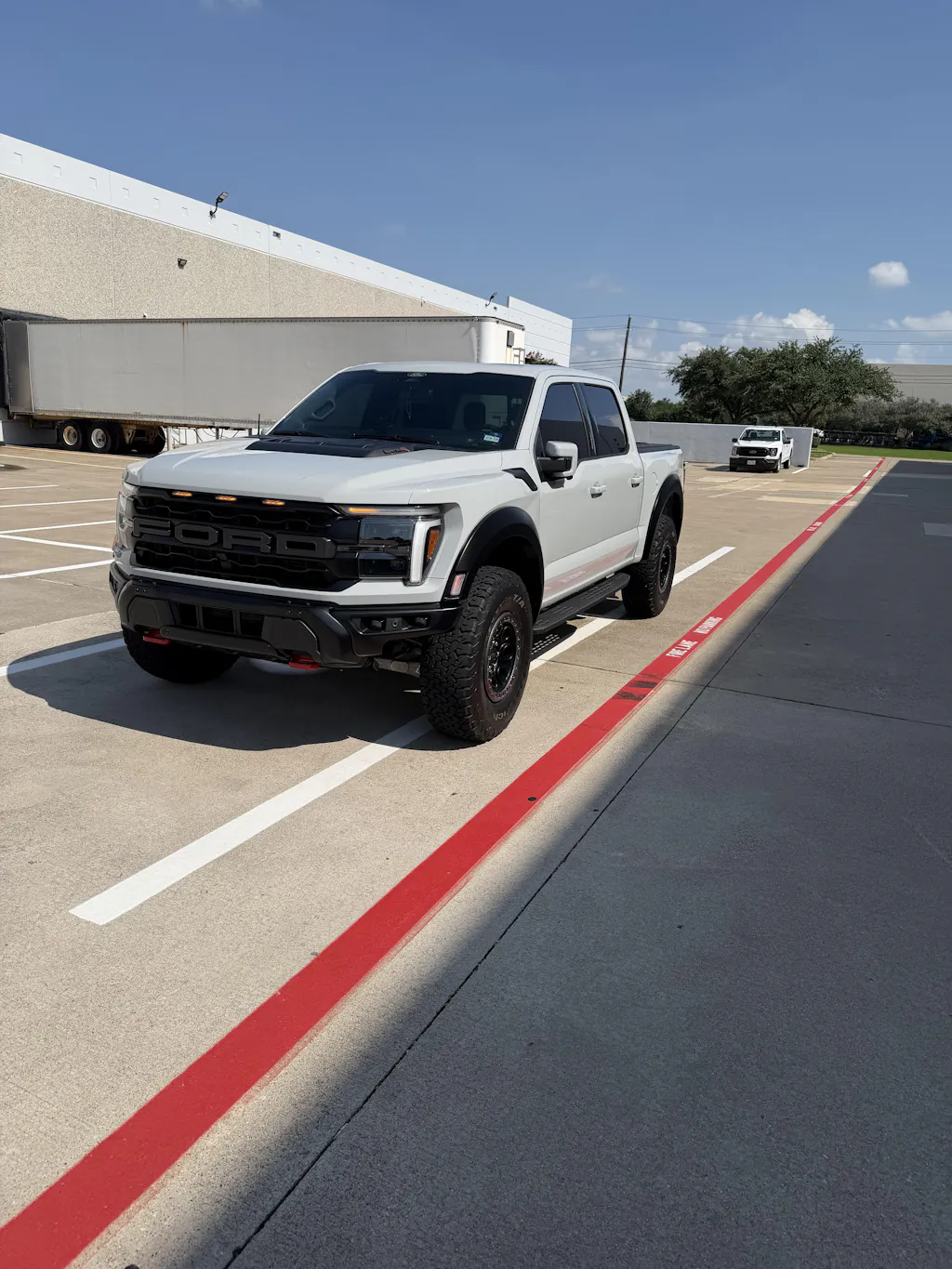
Johann Hubert
This is the second Raptor they tuned for me and
This is the second Raptor they tune for me and I’m just as happy as I was five years ago.The Customer Service is excellent JR and his counterpart always helps. I’m not too good with Computer, etc. but you call and they answer. I definitely recommended to anybody.
The truck feels much lighter. The shifting is so much better.
SCT Tuner BDX 40490
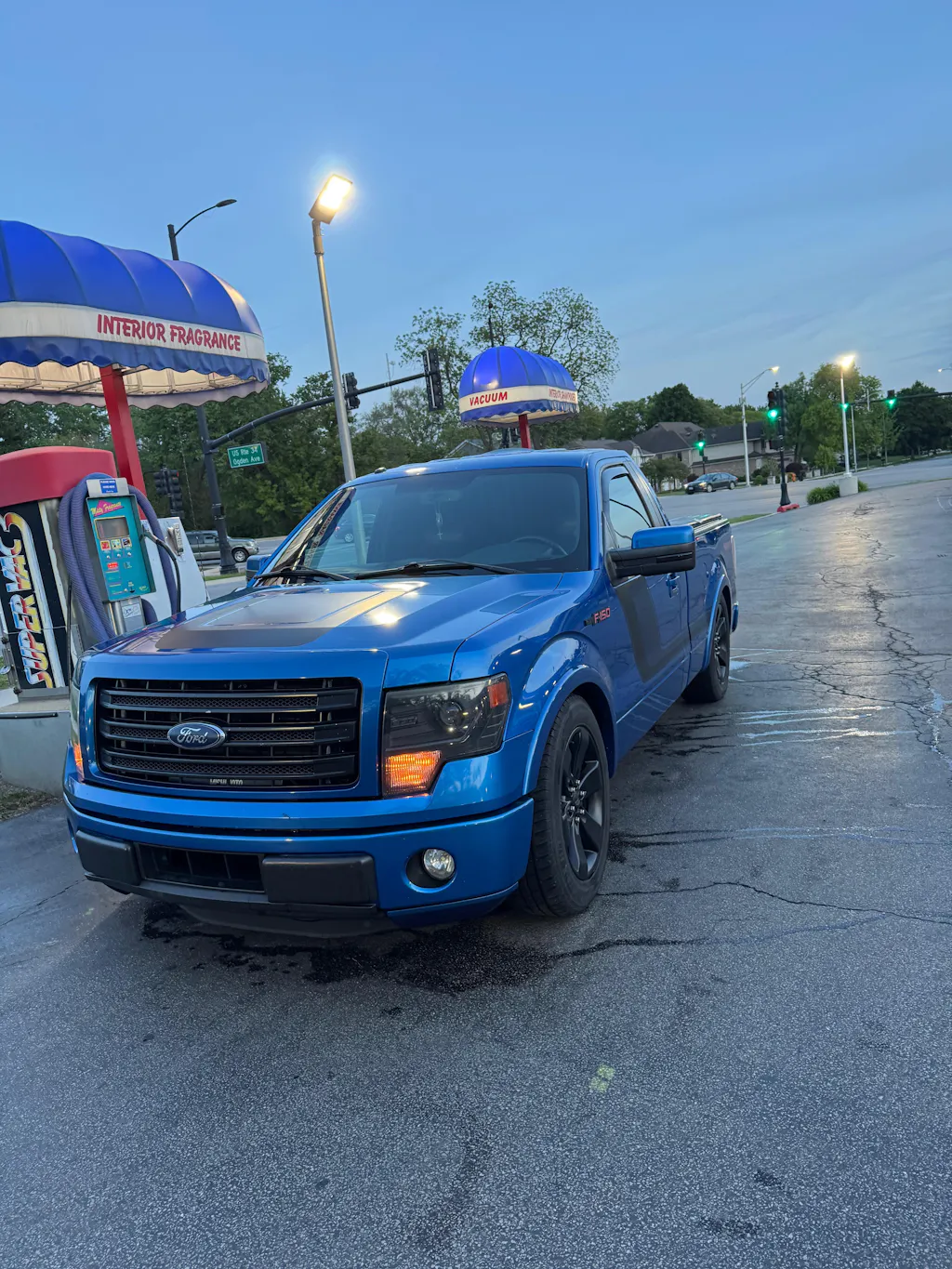
Christian
2014 f150 tremor
Impressed with the 87-prx tune and love the 93 prx tune. Both times really wake up the truck and really like the customer support with you guys. Overall best decision for my 2014 f150 tremor
More Power Tuning
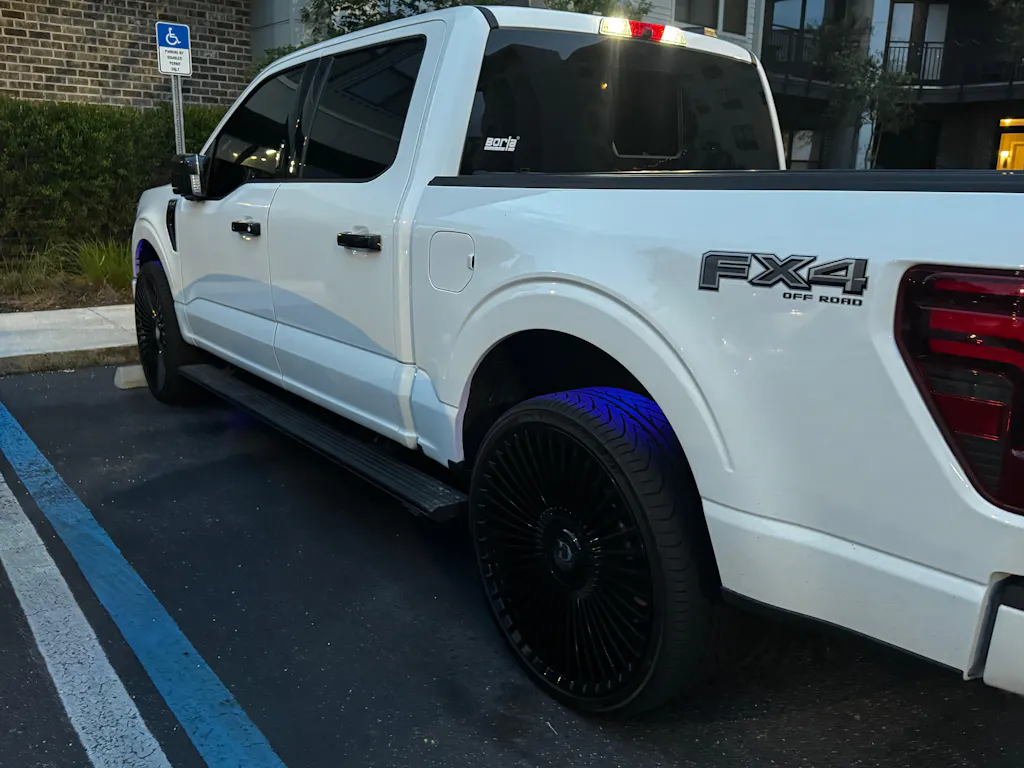
David Mosley
Great tune great customer service and great people
Great bunch of guys pick up the phone and they answer when you call, fix any issues that you have and make a great tune for the F150 I can’t speak for anything else, but made my truck alive. And no, I was not paid for this commercial
MPT LVL1 Tune Update
Jay W
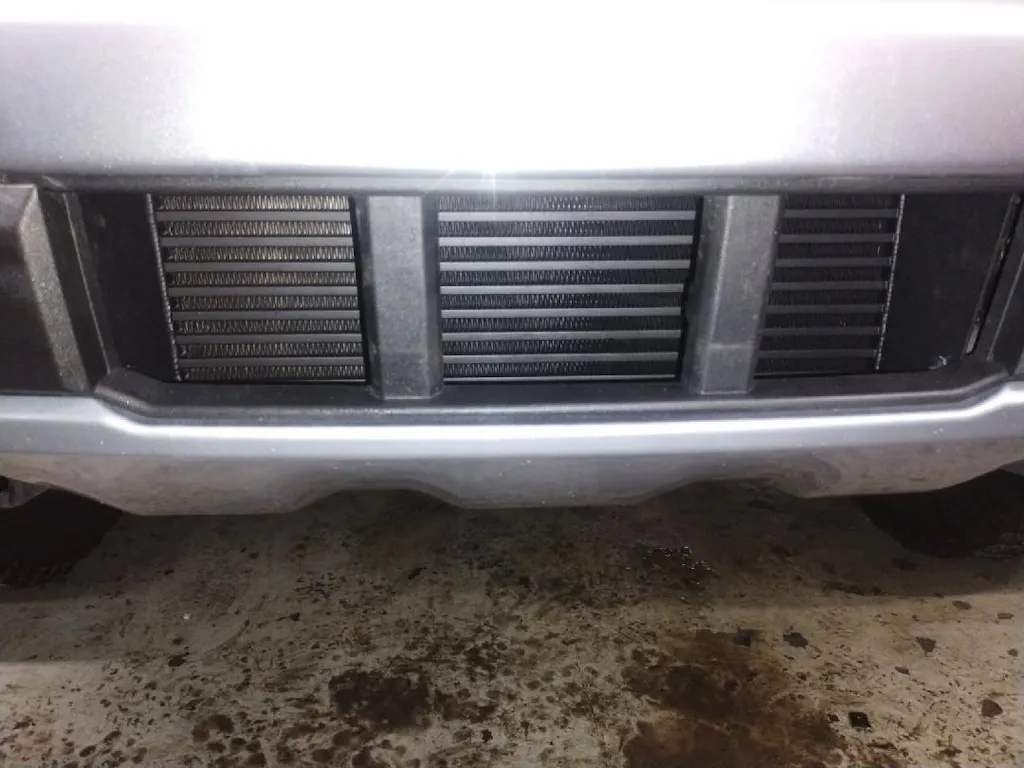
E50 PR-X plus Wagner Intercooler on 3.5 EB - Awesome
Huge shoutout to the guys at MPT for absolutely crushing the tune on my 2022 Ford F-150 3.5 EcoBoost. Their E50 tune completely transformed the truck — throttle response is night and day better, power delivery is brutal in the best way possible, and the truck still drives smooth and refined when cruising.
The difference under boost is unreal. The truck pulls hard all the way through the RPM range and feels like a completely different animal now. You can tell these guys really know the EcoBoost platform and take the time to dial things in correctly.
What really impressed me was how detailed they were during the data logging process. After reviewing my logs, they noticed my IATs were climbing pretty hard after just two passes. Instead of ignoring it, they immediately helped me address the issue the right way and got me set up with a Wagner intercooler. That thing is MASSIVE compared to the stock unit and made a huge difference in keeping temps under control and maintaining consistent performance.
Customer service was top notch the entire way — quick responses, knowledgeable support, and a team that genuinely cares about getting the setup right. If you want serious performance from your EcoBoost while still keeping drivability and reliability in check, MPT is the real deal.
Additional MPT Tunes Existing Customer
Bryce Schindler
One word - Great
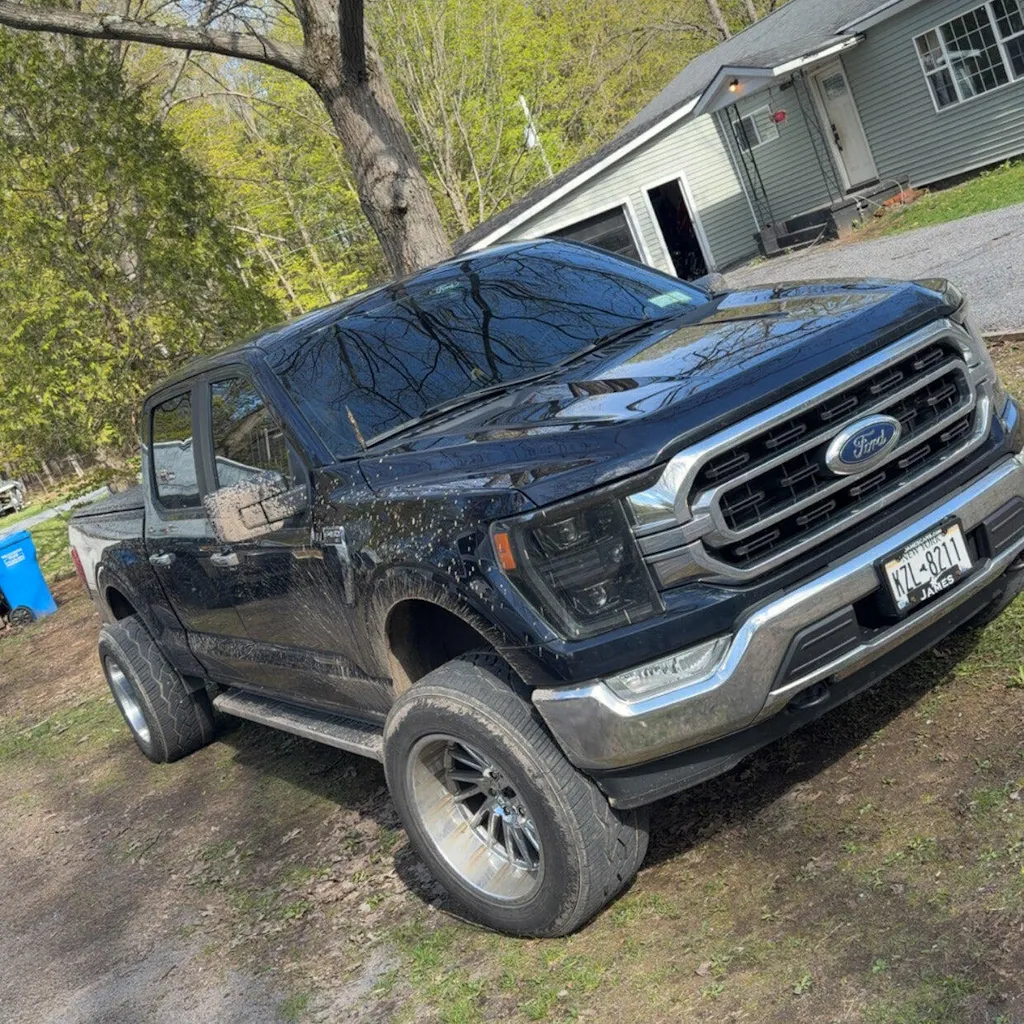
Great tunes quicker throttle response, good performance, and great costumer support
21-23 F-150 3.5L Ecoboost MPT Dyno Tested Tune (+Optional Tuner)
Ryan Reed
My buddy was right about MPT
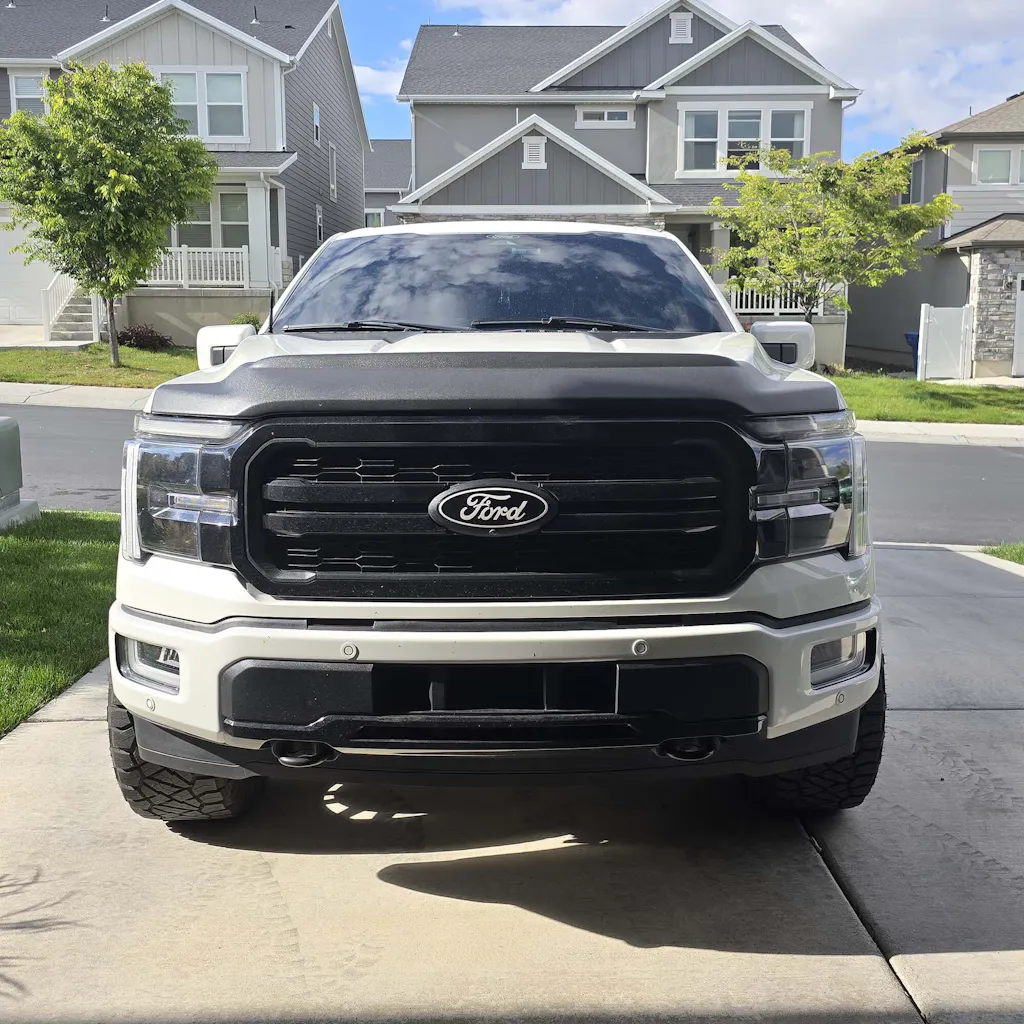
I started going down the rabbit hole of increasing sound, and speed. My buddy who's had a few F150s,recommended MPT Tuners for the actual tuner. Then I used Grok and had it build me a setup for my truck. So, we went with the aFe momentum GT CAI, CVF Titan 2 intercooler, the aluminum piping for the intercooler, a TURBOSPEED BOV, then the MPT Tuner. Eventually, some SPD alpha catted downpipes, Borla Atak cat back exhaust.... that's the next $4k.. 😪 but MPT pricing is fire! Shipping was fast! Strongly recommend using MPT for all your performance needs
24-26 F-150 3.5L Ecoboost MPT Dyno Tested Tune (+Optional Tuner)
What customers think about the store
Specializes in performance tuning for Ford vehicles, particularly EcoBoost engines. Customers praise exceptional customer service, fast shipping, and transformative results. Tunes dramatically improve throttle response, shifting smoothness, and power delivery....
AI-generated from customer reviews.
Power Service Truck Tune
GET MPT TUNED
Select your Vehicle to begin.


NIGHT AND DAY DIFFERENCE
Unlock the Full Potential of your Ford
Get Ready for


DYNO PROVEN / TRACK VERIFIED / CUSTOMER DRIVEN
SHOP ALL PARTS BY VEHICLE
Select your Vehicle to begin.


Popular Categories


What customers say

Review for 21-23 Raptor 3.5L MPT Tune
Reid H, 2023 Raptor 3.5 Ecoboost
“I enjoyed the MPT YouTube videos on Raptor tuning and decided to try them out. Customer service has been top notch, and the tuning has been just as good. I’m running the 91 Daily/Tow and 93 PRX tunes. Phenomenal power from both. Highly recommend.”

Review for 21-23 F-150 3.5L MPT Tune
Daniel B, 2022 F-150 3.5 Ecoboost
“And boy I’m glad I did go with MPT because the truck drives beautifully. They market the 93-PRX tune seem like a race tune but doesn’t come up that way to me. It shifts beautifully the throttle response is very smooth and quick. And when you stomp on it in sport mode, the turbos literally sound like when a plane takes off. Probably because I have the AFE intake. The whole experience so far with MPT has been amazing.”

Review for 11-17 Mustang 3.7L MPT Tune
Braeden M, 2011 Mustang 3.7 V6
“I used **** and didn’t feel that oomph. I wasn’t expecting V8 power, but I expected more. Since getting my MPT tune, the car has been completely different, and the pops are great! It even chirped 2nd gear on an automatic the first time I tried a pull. Smiles all around. What stands out even more than the great tune is their awesome customer service and friendliness.”

Review for 21-23 F-150 2.7L MPT Tune
Dustin T, 2023 F-150 2.7 Ecoboost
"I went with RTD4 because I wanted to return to stock and use warranty if needed. I’m running PRX93 and 93 Daily/Tow tunes. I’m impressed! Throttle response is great, turbo lag is gone, speed limiter is gone, and the 10 speed shifts great! These guys know what they are doing. My truck is night and day with the performance gains I’m getting now. I installed CV Fabrication V2 Titan intercooler, Turbosmart BOV, J&L oil catch can, and NGK plugs. This truck has come ALIVE!"

Review for 17-20 Raptor 3.5L MPT Tune
Jamal A, 2020 Raptor 3.5 Ecoboost
“Excellent customer service and response times. It’s easy to contact them, and they always reply quickly to help with anything. I tuned my truck and immediately felt the difference after the 93PR-X tune. Thank you, MPT team, for everything. I’ll definitely come back after upgrading the turbo, because once you tune with MPT, you’ll never think about going anywhere else.”

Review for 18-20 F-150 5.0L AAA MPT Tune
Jonathan P, 2020 F-150 5.0 V8 Coyote
"I’ve used MPT in the past and wanted to give them yet another shot. Boy I’m I glad I did. Feels like a totally different truck. The power delivery is super smooth and is available at the crack of the foot. Transmission is on point with nice firm shifts and always seems to be in the right gear. I also like the fact that I can run any rating of fuel with the AAA tune. Overall I’m very happy and only regret is I didn’t do this sooner."

Review for 21-23 Raptor 3.5L MPT Tune
Kevin M, 2022 Raptor 3.5 Ecoboost
“Don't waste your time looking at other "tunes" for your Gen 3 Raptor. Other companies are just trying to meet MPT's skill levels and aren't even close. Customer service and support is outstanding. Just go ahead and order it, you'll be glad you did!”

Review for 21-23 F-150 3.5L MPT Tune
Jorge D, 2022 F-150 3.5 Ecoboost
“After doing my research I decided to go with MPT. Reviews from customers and videos uploaded by MPT sealed the deal for me and I pulled the trigger. SMOOTH GAINS!!!! NEW TRUCK!!! All I can say. Great customer service throughout the whole process and extremely pleased with MPT.”

Review for 21-23 F-150 2.7L MPT Tune
Michael S, 2023 F-150 2.7 Ecoboost
“MPT went above and beyond my expectations. My 1st track time with just a Roush intake ran a 13.8. Just by adding a PRX E85 tune, I got down to 12.4 in a 2 wheel drive! Wow, it really surprised me what these guys can do. If you want to see massive horsepower gains and throttle response, I would definitely recommend MPT.”

Review for 17-20 Raptor 3.5L MPT Tune
Ryan M, 2020 Raptor 3.5 Ecoboost
“This is the second Raptor I have had tuned by Mike and his team and they never disappoint! Thank you for putting this one together and whenever anyone asks where I got it tuned I will make sure to recommend MPT! Highly recommend MPT for those who want to unlock the true potential of these beasts!!”

Review for 17-20 F-150 3.5L MPT Tune
Albert M, 2019 F-150 3.5 Ecoboost
“I have a buddy that’s actually a diesel mechanic and his foreman has a 3.5 Ecoboost tuned by MPT and he took me for a ride and it doesn’t compare to any of the tunes my truck has had, so I had to get with y’all asap to get me right. Like night and day with another big name 93 tune, when I say PRX tune doesn’t mess around it doesn’t! Best tune I’ve ever had and my truck is finally awake!"

Review for 18-20 F-150 2.7L MPT Tune
Joshua G, 2017 F-150 2.7 Ecoboost
“I chose MPT because of their knowledge and support. Plus, I’ve heard a lot of good things about their tunes and how they can correct the transmission shifting issue. So, I went with them on the SCT tuner with 87 octane Daily-Tow tune and it really is like driving a new truck! Thanks MPT.”

Review for 11-16 F-150 3.5L MPT Tune
Gary B, 2012 F-150 3.5 Ecoboost
“MPT has been a blessing for my Ecoboost F150. More power is an understatement! MPT asked for a datalog in 3rd gear from 2-6k rpm’s and the truck hit 139.91mph in 3rd gear alone. They have definitely exceeded all my expectations by far. MPT is the only tuner in my opinion. I’ve used 4 different competitors and none of them could do what MPT did.”

Review for 11-17 Mustang 3.7L MPT Tune
Bill M, 2013 Mustang 3.7 V6
“I was tuned by **** and wasn’t very happy. I found other 3.7 Mustangs tuned by MPT and heard nothing but great things. The 93 PRX tune made a huge difference in performance and how it shifted. MPT has been nothing but helpful when it comes to tuning my vehicle. They respond very quickly. Hands down the best tuner out there when it comes to the 3.7.”

Review for 18-20 F-150 5.0L AAA MPT Tune
Heath B, 2018 F-150 5.0 V8 Coyote
“I chose MPT because they have the alpha tune for SCT, and they are only a few hours from me in Florida. The tune has taken my truck from 14.4 stock to 13.77 in the ¼, shift points are firm and on point, and the customer service is outstanding. Thanks MPT.”

Review for 11-17 Mustang 3.7L MPT Tune
Brian J, 2015 Mustang 3.7 V6
“I heard so many good things about MPT tunes, but didn’t know how awesome and amazing their tunes are, until I actually got one for my car. And now, I feel like I got a new car. It's running great and the driving experience is on a whole new level thanks to MPT. Just wish I got it sooner.”
MPT's most Popular Brands


What Makes MPT Different?
- Choosing a selection results in a full page refresh.